GA4 reports for contractors: five questions and where to find each answer
The GA4 reports a small business or contractor needs: five plain questions, the report that answers each one, and how to mark calls and forms as key events.
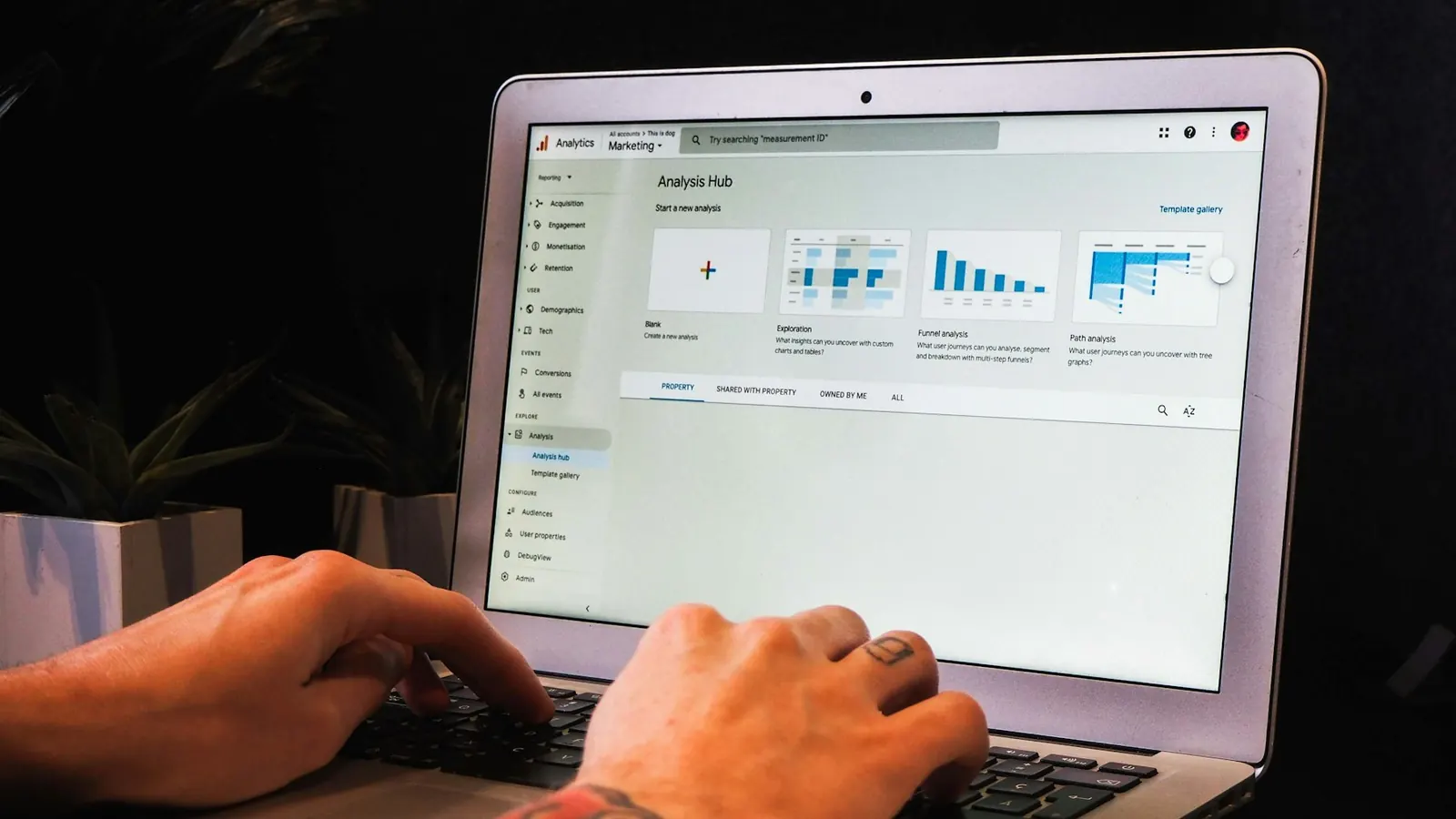
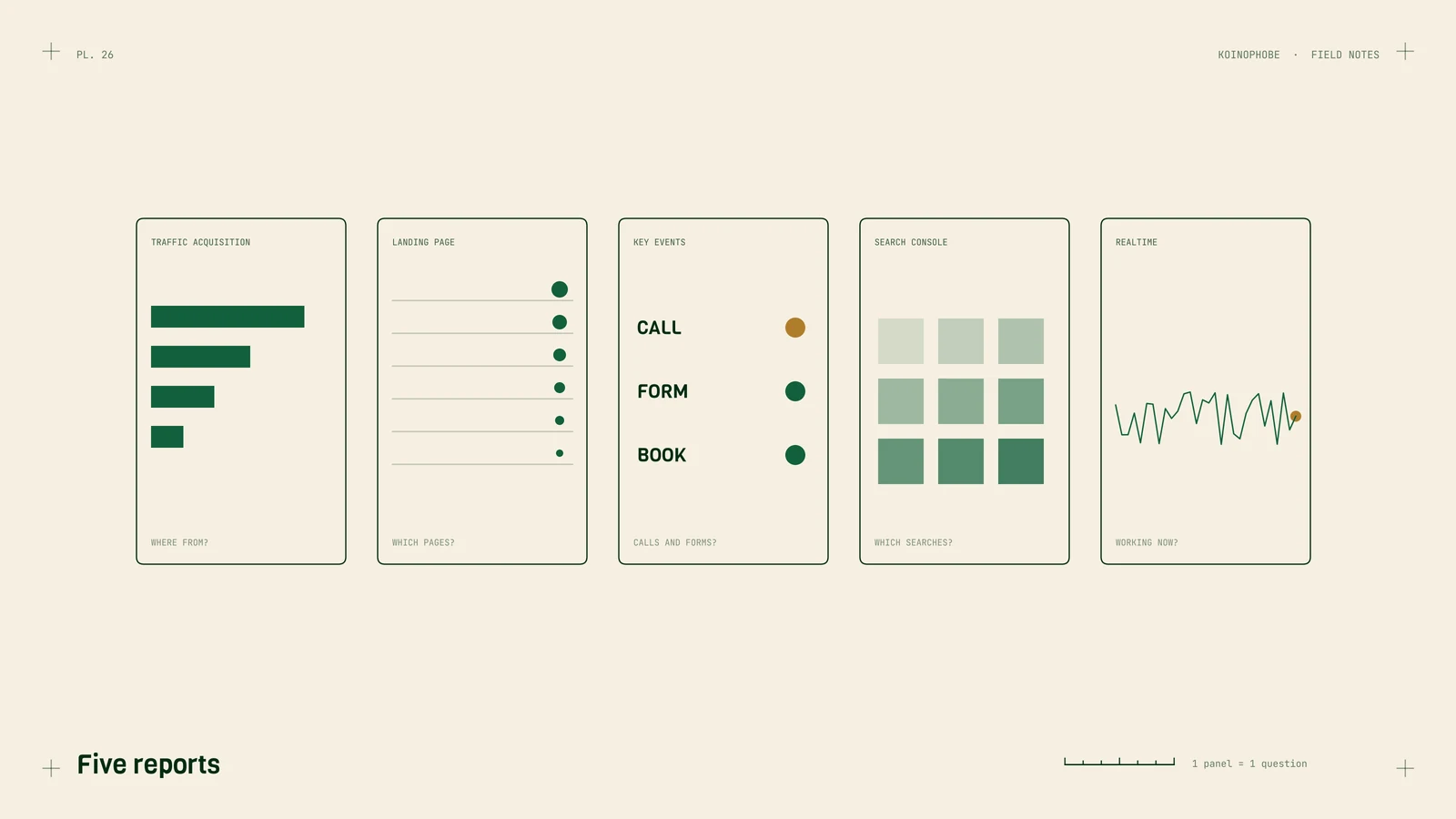
Google Analytics 4 opens on a home screen full of cards, and most of them won't help you run a contracting business. You need about five reports. Each one answers a question you'd ask anyway: where people came from, which pages bring leads, whether the phone is ringing, what they searched, and whether tracking is working today.
Before any of that, GA4 has to know what a lead looks like on your site.
First: mark your key events
GA4 records events, which are things visitors do. Some events it tracks on its own, like page views and scrolls. The ones that matter to you are phone taps, form submissions and online bookings, and GA4 doesn't know those are leads until you tell it.
If the events don't exist yet, you build them. A phone tap is usually done in Google Tag Manager with a Click - Just Links trigger, set to fire when the Click URL starts with tel:, and a GA4 Event tag. We walk through it step by step in phone click tracking with Tag Manager, and the three events every local business should track covers forms and bookings too.
Once an event shows up in GA4, go to Admin > Events and turn on the key event toggle next to it. From then on, it appears as a key event across your reports.
One warning. A form event fires when someone clicks submit in the browser. It can't tell you whether the email reached your inbox. In July 2026 we found a client's form submissions had been dropping since March because the form's email (SMTP) connection needed re-authenticating after an email address change. Four months, and nobody noticed, us included. Now we test form delivery on every site monthly. On another site, a speed plugin setting stopped forms from submitting at all, which we wrote up in the speed plugin that broke a contact form.
1. Where are visitors coming from?
Reports > Acquisition > Traffic acquisition.
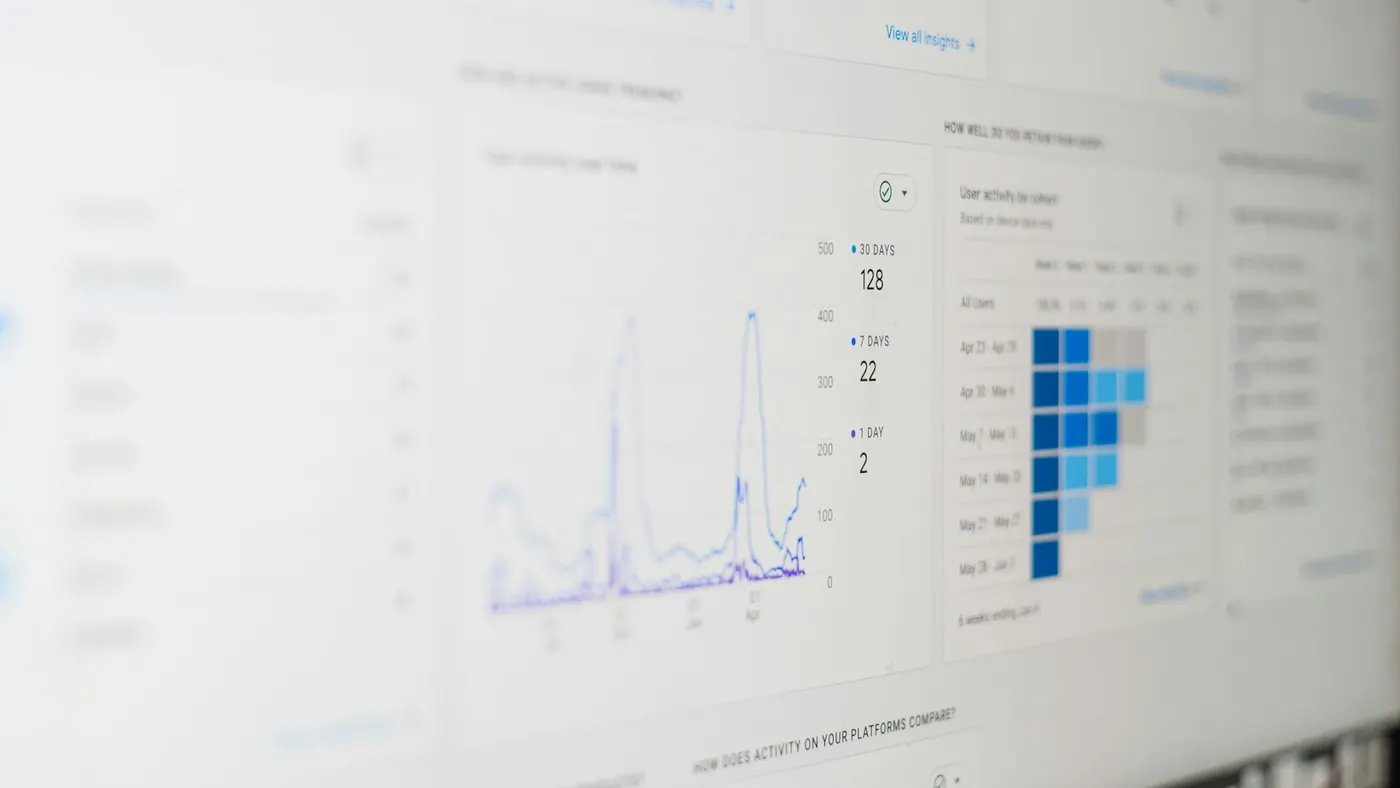
Each row is a channel: Organic Search, Direct, Paid Search, Referral, Organic Social and so on. Look at sessions, then look at the key events column for each channel. If Organic Search brings plenty of visits and very few key events, you have a page or tracking problem to find. If Paid Search brings most of your key events, you know what your ad money is buying.
Set the date range to the last 28 days and compare it with the same period last year. Seasonal trades swing too much for month-to-month comparisons to mean much.
2. Which pages bring leads?
Reports > Engagement > Landing page.
This shows the first page each visit started on. Sort by key events. Your best service pages should be near the top. A page with lots of sessions and zero key events deserves a look. Is the phone number easy to tap on mobile? Is there a form, and does it work? Does the page let people do what they came for? On a roofing site we work on, a search about booking an inspection ranked at position 2.6, showed 143 times in four weeks and got zero clicks. The page had no way to book online.
3. Are calls and forms happening?
Reports > Engagement > Key events.
This lists each key event and how many times it fired. Hold it up against what your office logged for the same week. If GA4 shows far more phone taps than the office took calls from the website, something is off. People may be tapping and hanging up, or the event may be firing on the wrong link. GA4 counts taps. To see which calls connected and became jobs, you need call tracking set up for a contractor.
4. What did people search?
GA4 doesn't show Google search terms on its own. Link Search Console under Admin > Product links > Search Console links. After that, the Search Console reports in GA4 show your queries and Google organic landing pages next to engagement data. If you don't see them, open the Library in Reports and publish the Search Console collection. If you haven't set up Search Console yet, start with Search Console for contractors.
5. Is it working right now?
Reports > Realtime.
Realtime shows the last 30 minutes. Use it as a test bench. Open your site on your phone, tap your number, submit your form, and watch the events come in. If a key event doesn't show up within a minute or two, something in the tracking is broken. Fix that before you trust any of the other four reports. Tag Manager's Preview mode gives you the same check in more detail before you hit Publish.
Next step
Do the Realtime test this week. If calls or forms don't show up, tracking in GA4 is part of the Setup Sprint on our pricing page, along with the Business Profile cleanup, speed and schema work.
Frequently asked questions
How do I mark a key event in GA4?
Go to Admin, then Events, find the event (for example a phone tap or form submit) and turn on the key event toggle. GA4 starts counting it as a key event from that point forward.
Does GA4 show which Google searches people used?
Only after you link Search Console. Go to Admin, Product links, Search Console links, and connect your property. The Search Console reports then show queries next to your GA4 data.
Does a phone tap in GA4 mean a phone call happened?
No. GA4 records the tap on your number. Whether the call connected and turned into a job needs call tracking or your office's call log.