How to optimize images for website speed on a contractor site
How to optimize images for website speed on a contractor site: resize, convert to WebP, compress, name and size them properly, and lazy load the right ones.
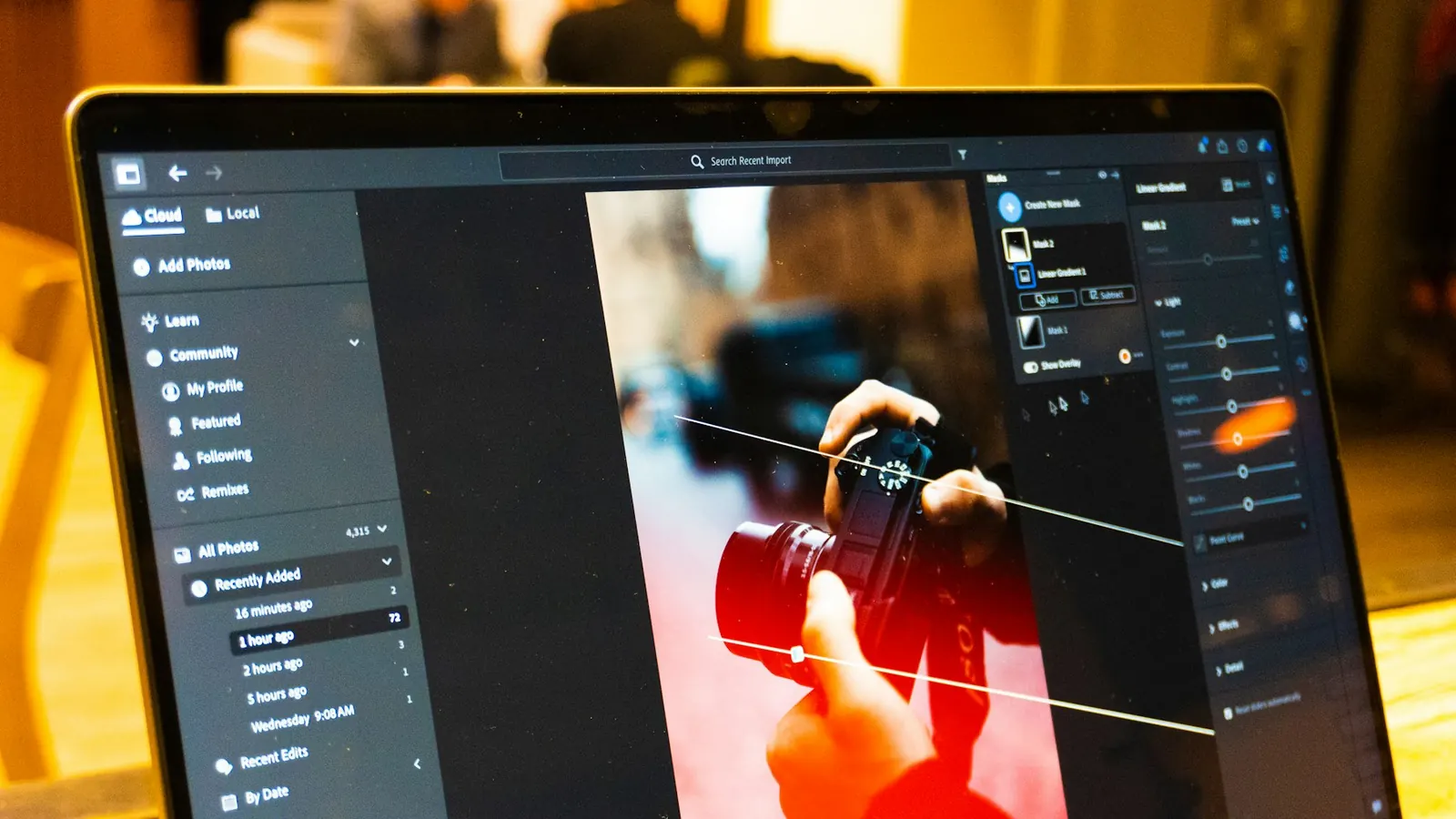
Contractor websites run on photos of finished jobs. Most of them come straight off a phone, several megabytes each and thousands of pixels wide, and get uploaded exactly as they are.
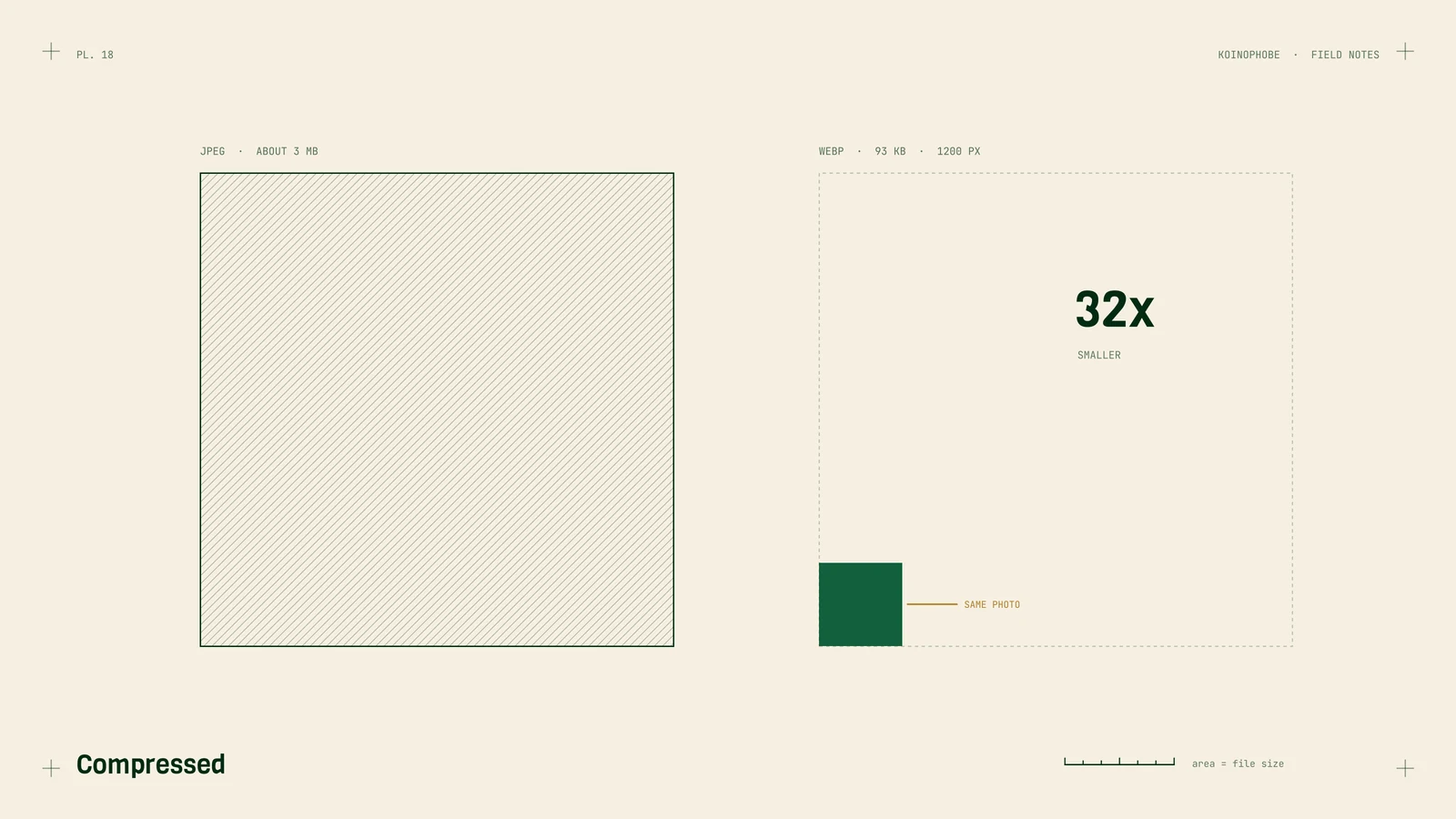
Our own site had the same problem. The photos were JPEGs of about 3 MB each. After we resized them to 1200 pixels wide and converted them to WebP, they came out between 93 and 200 KB.
Why photo size matters
Google's Core Web Vitals measure loading with Largest Contentful Paint (LCP), the time it takes the biggest thing on screen to appear. Google calls 2.5 seconds or less good. On a lot of contractor sites, the biggest thing on screen is the hero photo, so a 3 MB hero on a phone with a weak signal puts LCP in trouble before anything else on the page is counted.
Speed is one ranking signal among many. A fast page with thin content doesn't automatically beat a slower page that answers the search better. The bigger cost of a heavy page is the visitor who leaves before your phone number shows up.
How we optimize contractor photos
1. Resize to the display size

Find out how wide the image displays on the page. A photo shown in a column 800 pixels wide gains nothing from being 4,000 pixels wide; the browser still downloads every pixel. Our site photos are 1200 pixels wide. WordPress creates smaller copies of each upload and serves them to smaller screens, so upload a sensibly sized original and let it handle the rest.
2. Convert to WebP
WebP files are usually much smaller than JPEGs at a similar look, and current major browsers support the format. WordPress has accepted WebP uploads since version 5.8. You can convert one photo at a time with a free tool like Squoosh, or use a plugin that converts on upload.
3. Compress
Lower the quality setting until you can see a difference at the size the photo displays, then go back up a step. Photos of shingles and pavers hide compression well. Text, logos and fine lines show it sooner.
4. Give files real names
IMG_4821.jpg tells Google nothing about the photo. flat-roof-repair-tpo-seam.webp does. Use lowercase words and hyphens, and describe what's in the picture.
When we built a flat roof repair page for a roofing client in July 2026, this was most of the image work. We took the client's own job photos, compressed them, renamed them, added metadata, converted them to WebP, and then built the page around them and linked it with the main services page.
5. Write alt text
Alt text is read aloud by screen readers and shown when an image fails to load. Describe what's in the photo, plainly: "Crew replacing shingles on a two-story house" is useful. "Best roofer roofing roof repair near me" is keyword stuffing, and it helps no one.
6. Set width and height
Every image tag should have width and height attributes. They let the browser reserve the right amount of space before the image arrives. Without them, text jumps down the page as photos load, which Google measures as Cumulative Layout Shift (CLS); good is 0.1 or less. WordPress adds these for images placed through the block editor. Page builder widgets and hand-coded sections sometimes leave them out, so check.
7. Lazy load below the fold, never the hero
loading="lazy" tells the browser to wait until an image is close to the screen before downloading it. That's right for gallery photos further down the page. It's wrong for the hero, because it delays the exact image LCP is measuring.
WordPress adds lazy loading automatically and tries to skip the first large image, but sliders and some themes get in the way. View the source of your home page and check that the hero has no loading="lazy". Adding fetchpriority="high" to the hero tells the browser to fetch it first.
Check the result
Run the page through PageSpeed Insights before and after. It flags images that are oversized or in older formats, and it names the element it used for LCP, which tells you which photo to fix first.
If you're planning a redesign, carry your renamed files and alt text over with the content; our website redesign checklist covers the rest. And if you add a speed plugin to compress images for you, test your forms afterward. One speed plugin setting broke a client's contact form.
Speed work, including images, is part of the Setup Sprint on our pricing page. If you want us to look at what's slowing your site down, send us the link.
Frequently asked questions
What size should images be on my website?
Resize them to the largest width they display at. Our own site photos are 1200 pixels wide, and a photo inside a column of text can usually be smaller.
Is WebP better than JPEG for a website?
For photos, WebP files are usually smaller than JPEGs at similar quality, and current major browsers support it. After resizing and converting, our own photos went from about 3 MB to 93 to 200 KB.
Should I lazy load every image on my site?
No. Lazy load images below the fold. The hero image at the top should load right away, because it is often the element Google uses to measure loading speed.